
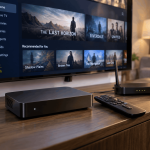

Internet television has made it easier for households to watch live channels, films, and on-demand programmes across different devices. However, occasional playback errors can interrupt the viewing experience. A programme may freeze unexpectedly, a video may refuse to load, or an application may display an error message without explaining the problem.
These issues can occur for several reasons, including unstable internet connections, outdated applications, device limitations, and temporary service interruptions. Fortunately, many common playback problems can be resolved without advanced technical knowledge.
Understanding what causes these errors and following a structured troubleshooting process can help viewers restore normal playback and prevent similar interruptions in the future.
Identify the Type of Playback Error
Before changing settings or restarting equipment, it helps to identify exactly what is going wrong. Different symptoms often point to different causes, so recognising the problem can make playback troubleshooting more efficient.
For example, frequent buffering may indicate an unstable connection, while a black screen with working audio could suggest a video decoding or display compatibility issue. An application that closes unexpectedly may have a software or memory-related problem.
Some common internet television playback errors include:
-
Continuous buffering: The video repeatedly pauses while additional content loads.
-
Frozen picture: The image stops moving even though the application remains open.
-
Black screen: The programme appears to start, but no video is displayed.
-
Playback failed message: The application cannot start or continue the selected content.
-
Audio without video: Sound plays normally, but the picture is missing.
-
App crashes: The streaming application closes or returns to the home screen.
Try playing a different channel, programme, or video within the same application. If only one item fails, the issue may be related to that particular stream. If everything fails, the connection, application, device, or service may need attention.
Check Your Internet Connection First
A stable internet connection is essential for reliable internet television. Even when a connection appears fast enough, temporary interruptions, network congestion, or inconsistent Wi-Fi coverage can affect playback.
Start by checking whether other internet-based services are working normally. Open a website or play a video through another application. If several services are experiencing problems, the home network may be responsible.
Running an internet speed test can provide useful information about download performance. However, speed alone does not guarantee smooth streaming. Connection stability, latency, and packet loss can also affect video delivery.
If the television uses Wi-Fi, consider moving the router closer or reducing obstacles between the router and the device. Thick walls, metal furniture, and interference from nearby networks can weaken the signal.
For devices with an Ethernet port, a wired connection may provide more consistent performance. It is particularly useful for televisions or streaming boxes that remain in a fixed location.
If the connection appears unstable, restart the router and allow it to reconnect fully before testing playback again.
Restart the Television or Streaming Device
Restarting a device is one of the simplest ways to resolve temporary playback problems. Applications sometimes encounter memory issues, background process conflicts, or software errors that interfere with video playback.
Close the streaming application completely before reopening it. If the problem continues, restart the television, streaming box, smartphone, or computer.
On some smart televisions, pressing the power button only places the device into standby mode rather than performing a full restart. Use the restart option in the device settings if available.
Alternatively, follow the manufacturer's recommended procedure for safely powering down and restarting the equipment.
After restarting, open the application and try playing the same content again. If playback returns to normal, the interruption may have been caused by a temporary software problem.
Update Your Streaming Application
Outdated applications can create compatibility problems, particularly when streaming platforms introduce new playback features, security requirements, or software changes.
Check the device's application store for available updates. Installing the latest compatible version may resolve known bugs and improve stability.
It is also important to keep the television or streaming device's operating system updated. Some playback features depend on system components that receive improvements through firmware or operating system updates.
If an application continues to malfunction after updating, check whether it supports the device's current operating system version.
Older televisions and streaming devices may eventually lose compatibility with newer applications. In these situations, a supported external streaming device may be a practical alternative to replacing the entire television.
Avoid installing applications from unknown sources, as unofficial software can introduce security risks and additional performance problems.
Clear Application Cache and Free Up Storage
Streaming applications often store temporary files to improve loading times and remember certain preferences. Over time, these files may become corrupted or occupy unnecessary storage space.
On supported Android-based televisions and streaming devices, users can usually clear an application's cache through the system settings.
The exact steps vary by device, but the process generally involves opening the application management section, selecting the affected app, and choosing the cache-clearing option.
Clearing the cache is different from clearing application data. Removing app data may delete saved preferences, downloaded content, or login information, so it is worth checking before proceeding.
Limited storage space can also affect application performance. If the device is nearly full, remove unused applications or unnecessary downloads.
After freeing storage, restart the application and test playback again.
Adjust Video Quality When Buffering Continues
Higher video resolutions require more bandwidth and place greater demands on network stability. If playback frequently pauses, lowering the video quality may improve consistency.
Many streaming applications provide automatic quality settings that adjust resolution according to available bandwidth. However, automatic adjustments do not always respond quickly enough to unstable connections.
If the application allows manual selection, try reducing the resolution from 4K to 1080p or from 1080p to 720p.
A slightly lower resolution with uninterrupted playback may provide a better viewing experience than a higher resolution that repeatedly freezes.
Also consider how many devices are using the home network. Large downloads, cloud backups, video calls, and online gaming can compete for available bandwidth.
Pausing unnecessary downloads or scheduling large updates outside normal viewing hours may reduce congestion.
Fix Black Screens and Missing Audio
A black screen does not always mean the internet connection has failed. Sometimes the issue involves video format compatibility, display settings, or communication between connected devices.
If audio plays without video, try another programme or application to determine whether the problem affects all content.
For external streaming devices, inspect the HDMI cable and confirm that the television is using the correct input. Disconnecting and reconnecting the cable, or testing another compatible HDMI port, may help identify a connection issue.
If video appears but sound is missing, check the television's volume, mute status, and selected audio output.
Users with soundbars or AV receivers should confirm that audio is being sent to the correct device. An unsupported audio format can sometimes prevent sound from playing properly.
Where available, switching the source device to a compatible audio output format may help. Consult the equipment's documentation before changing advanced settings.
Understand Playback Error Messages
Some internet television applications display error codes when a video cannot start. These messages may indicate a network problem, an unavailable stream, an authentication issue, or a temporary service failure.
Rather than repeatedly restarting the application, record the exact error code or message.
Check the provider's official support documentation to understand what it means. Error codes are not universal, so the same number may represent different problems across applications.
If the message relates to account authentication, sign out and sign back in using the official application, provided the service recommends that step.
For content availability errors, verify whether the programme is supported in your location and included in your subscription.
Some programmes are restricted by broadcasting rights or licensing agreements. Changing device settings will not resolve a genuine content rights restriction.
If the error affects multiple devices and programmes, the provider may be experiencing a temporary service interruption.
Know When to Contact Customer Support
Not every playback problem can be fixed through home troubleshooting. If the internet connection is stable, the application is updated, and the device works normally with other services, the problem may be outside the viewer's control.
Before contacting support, gather a few useful details:
-
The device model and operating system version.
-
The application name and version.
-
The exact error message or code.
-
The approximate time the problem occurred.
-
Whether the issue affects one programme or multiple streams.
-
The troubleshooting steps already attempted.
Providing this information can help the support team investigate the issue more efficiently.
Use the provider's official support channels and avoid sharing passwords or sensitive account details through unverified messages.
Prevent Future Playback Interruptions
Regular maintenance can reduce the likelihood of recurring playback errors.
Keep streaming applications and device software updated, maintain sufficient free storage, and restart equipment when performance becomes unusually slow.
Position Wi-Fi equipment carefully and use a wired connection when practical. Avoid running unnecessary background downloads during important live programmes.
It is also useful to review application compatibility before purchasing new streaming equipment. Choosing devices that receive regular software updates can support a more dependable viewing experience over time.
When a playback issue occurs repeatedly, note whether it happens at a particular time, on a specific device, or with certain content. These patterns can help identify the underlying cause.
Conclusion
Playback errors are a common part of internet television, but many can be resolved through straightforward checks. Identifying the symptoms, testing the internet connection, restarting devices, updating applications, and reviewing audio or video settings are useful starting points.
More persistent problems may involve device compatibility, account restrictions, or temporary service interruptions that require assistance from the provider.
By following a systematic troubleshooting approach and maintaining their equipment regularly, viewers can reduce unnecessary interruptions and enjoy a smoother, more reliable television experience at home.