
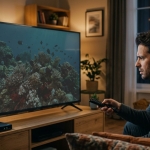

Have you connected your IPTV box to your television only to discover that the colors look faded, the screen appears too dark, or faces and backgrounds seem unnatural? This problem can make watching movies, live cricket, and Indian TV channels less enjoyable.
Fortunately, these picture issues are often caused by incorrect display settings, HDMI connection problems, or a mismatch between the TV and streaming device. You usually do not need to replace your television or IPTV box immediately.
In this guide, we explain why picture colors change after connecting an IPTV device and how to troubleshoot the problem step by step. Whether you use an Indian IPTV Box at home or access channels through IPTV India, these tips can help you work toward a clearer, more natural picture.
Table of Contents
-
Common Causes of Washed-Out or Dark Colors
-
Check the HDMI Cable and Connection
-
Adjust Your TV's Picture Settings
-
Check HDR and Dynamic Range Settings
-
Match the Color Range Between Devices
-
Check Resolution and Display Settings
-
Restart and Update Your Devices
-
When to Contact Technical Support
-
Frequently Asked Questions
-
Final Thoughts and CTA
1. Common Causes of Washed-Out or Dark Colors
Several issues can affect the appearance of your television after connecting an IPTV box.
-
Incorrect picture mode: Cinema, Eco, or energy-saving modes may make the screen darker than expected.
-
HDMI connection problems: A loose or damaged cable can cause unusual picture behavior.
-
HDR compatibility issues: The TV and IPTV box may handle high dynamic range (HDR) and standard dynamic range (SDR) content differently.
-
Incorrect black-level settings: A mismatch between the TV and device can make blacks appear gray or remove detail from dark scenes.
-
Wrong color settings: Saturation, contrast, gamma, or color temperature settings may be unsuitable.
-
Unsupported display output: The selected resolution or color format may not work optimally with your TV.
The best approach is to start with simple checks before changing advanced settings.
2. Check the HDMI Cable and Connection
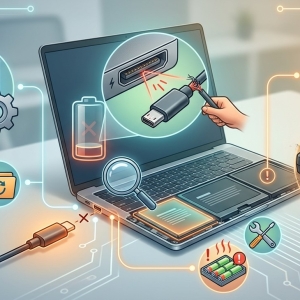
Your HDMI cable carries both video and audio signals between your IPTV box and television. A loose connection or faulty cable can sometimes cause display problems.
Follow these steps:
-
Turn off your TV and IPTV box.
-
Disconnect the HDMI cable from both devices.
-
Inspect the cable and connectors for visible damage.
-
Reconnect the cable firmly.
-
Try another HDMI port on your television.
-
If possible, test with a different, compatible HDMI cable.
Turn both devices back on and check the picture again. If the colors return to normal, the issue may have been related to the connection or cable.
For additional guidance, see Jio's set-top box picture troubleshooting advice.
3. Adjust Your TV's Picture Settings
Televisions often save separate picture settings for different HDMI inputs. Your IPTV box may therefore look different from your regular TV channels or another connected device.
Open your TV's picture settings and check the following:
Picture mode: Try Standard or another balanced preset. Movie and Filmmaker modes can look darker in some rooms, while Vivid mode may exaggerate colors.
Brightness and backlight: If the entire screen looks too dark, adjust the screen brightness or backlight controls available on your TV.
Contrast: Adjust contrast gradually if bright areas look washed out or lose detail.
Color saturation: If colors look pale, check the color setting. Increase saturation slightly if needed, rather than immediately choosing the maximum value.
Color temperature: Try the Normal or Warm preset if whites look unnaturally blue or the overall image looks cold.
Eco mode: Check whether an energy-saving setting or ambient-light sensor is automatically reducing screen brightness.
Change one setting at a time and compare the results. If you cannot identify what changed, use the TV's Reset Picture option for the current input or picture mode.
Samsung provides further information about these controls in its TV picture-setting guide.
4. Check HDR and Dynamic Range Settings
High Dynamic Range (HDR) can display a wider range of brightness and color than standard dynamic range (SDR). However, the result depends on the content, device, and television.
If SDR programs look unusually dark or colors appear over-saturated, your IPTV box may be applying an HDR output mode that does not suit the content.
Try this:
-
Open the display or video settings on your IPTV box.
-
Find the HDR or dynamic-range option.
-
If available, select Auto or enable matching the display range to the content.
-
If the picture still looks incorrect, test SDR output or disable forced HDR conversion.
-
Restart the device and compare several programs.
Menu names vary by model. Avoid forcing HDR on content that does not support it unless your device and TV handle the conversion correctly.
Google's streaming-device display guide explains how dynamic-range and format settings can affect picture appearance.
5. Match the Color Range Between Devices
One less obvious cause is a mismatch in the HDMI video range.
Some devices use a limited video range, while others can output a full range. If the IPTV box and television interpret the signal differently, the picture may show gray-looking blacks, overly dark shadows, or washed-out highlights.
To troubleshoot:
-
Open the IPTV box's display settings.
-
Look for HDMI range, RGB range, black level, or color format.
-
Select Auto first, if available.
-
Check the TV's corresponding HDMI black-level or video-range setting.
-
If Auto does not work, consult both device manuals to choose compatible settings.
Do not automatically select Full on one device and Limited on the other. The two devices need compatible range settings for accurate contrast.
Sony's HDMI dynamic-range guide explains how an incorrect range can cause loss of detail in dark or bright areas.
6. Check Resolution and Display Settings
Your IPTV box may be outputting a resolution or color format that is not ideal for your television.
For example, a 4K-capable device connected to a Full HD TV may need different output settings from those used with a 4K HDR television.
Try these steps:
-
Open the IPTV box's display settings.
-
Select a resolution supported by your television.
-
Choose Auto for the refresh rate or color format when appropriate.
-
If the picture is still incorrect, test a standard supported resolution such as 1080p.
-
Review the result before changing additional settings.
If your TV supports HDR, check whether its HDMI port requires an enhanced signal mode for certain formats. Only enable features supported by your particular TV and device.
7. Restart and Update Your Devices
Temporary software problems can sometimes affect display output.
To rule them out:
-
Restart the IPTV box using its normal restart option.
-
Turn off the TV and unplug it briefly before reconnecting power.
-
Check for official firmware updates for the TV and IPTV box.
-
Update the streaming app if the issue appears only within one app.
-
Test another channel or video to determine whether the issue affects all content.
If the picture looks normal in the device's home screen but incorrect in only one channel or app, the problem may be related to that content or app rather than the TV's overall display settings.
Avoid factory-resetting the box until simpler steps have failed and you have saved any necessary settings or login details.
8. When to Contact Technical Support
Contact your TV manufacturer or IPTV device provider if the problem continues after these checks.
Before contacting support, note whether:
-
The issue affects every HDMI input or only one.
-
All channels look wrong or only certain channels do.
-
The TV's menus also look discolored.
-
The picture changes when you switch HDR or resolution settings.
-
A different HDMI cable or device produces the same problem.
This information can help identify whether the issue is caused by the television, IPTV box, cable, software, or particular video content.
9. Frequently Asked Questions
Why does my TV look washed out after connecting an IPTV box?
Possible causes include a loose HDMI connection, incorrect color settings, an HDR mismatch, or incompatible video-range settings. Check the cable first, then review picture and display settings.
Why does my IPTV picture look too dark?
The TV may be using a dark picture preset, an energy-saving mode, or an unsuitable HDR setting. Try a balanced picture mode and check the box's dynamic-range output.
Should I increase the color saturation to fix faded colors?
Only slightly, if necessary. First check the HDMI connection, color format, and HDR settings. Excessive saturation can make skin tones and other colors look unnatural.
Can a faulty HDMI cable affect picture colors?
Yes. A damaged or poorly connected cable can cause video problems. Testing another compatible cable and HDMI port can help rule out connection issues.
Does an Indian IPTV Box need a 4K television?
Not necessarily. Many IPTV boxes support lower resolutions, but the available output depends on the device. Choose a resolution supported by both your box and TV.
Will changing IPTV providers fix washed-out colors?
Not always. If every channel and the device's interface look incorrect, the problem is more likely related to your connection or display settings. If only one channel looks wrong, the source or content may be responsible.
10. Final Thoughts and CTA
Washed-out colors and overly dark pictures can often be corrected without purchasing new equipment. Start by checking the HDMI cable, then review your TV's picture mode, HDR output, color range, and resolution. Change one setting at a time so you can identify what actually improves the image.
If you use IPTV India or an Indian IPTV Box, making sure your TV and streaming device use compatible display settings can help you enjoy a more comfortable viewing experience.
Ready to improve your IPTV setup? Visit the IPTV India website to explore available viewing options and learn more about choosing a compatible IPTV box for your home.