



Is your smartphone unable to download apps from the Google Play Store or Apple App Store? This problem can occur because of poor internet connectivity, insufficient storage, outdated software, or account-related issues. Fortunately, many app download problems can be fixed with a few simple troubleshooting steps. Mobile Device Techs helps smartphone users find solutions to common device issues, while customers looking for Samsung repair Douglasville or phone battery replacement Douglasville can explore professional repair options when hardware problems affect their devices.
Table of Contents
-
Common Reasons Your Smartphone Cannot Download Apps
-
How to Fix App Download Problems
-
When to Seek Professional Repair
-
Frequently Asked Questions
-
Call to Action
1. Common Reasons Your Smartphone Cannot Download Apps
Several issues can prevent your smartphone from downloading or installing applications.
Poor Internet Connection
A weak Wi-Fi signal or unstable mobile data connection can interrupt downloads. Large applications may fail to download when your internet connection frequently disconnects.
Insufficient Storage Space
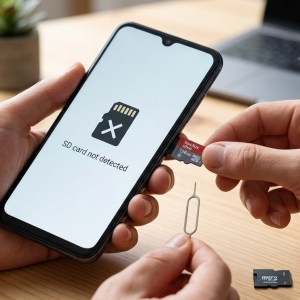
Apps require enough free storage to download and install successfully. If your phone's memory is nearly full, the download may remain pending or display an error.
Outdated Operating System
Some applications require newer versions of Android or iOS. If your phone runs outdated software, certain apps may be incompatible with your device.
App Store Errors
Temporary Google Play Store or Apple App Store glitches can prevent downloads. Corrupted cache files, service interruptions, or account problems may also cause issues.
Incorrect Date and Time Settings
Incorrect date and time settings can interfere with secure connections to app store servers, preventing downloads from completing.
2. How to Fix App Download Problems
Follow these practical steps to troubleshoot your smartphone.
Step 1: Check Your Internet Connection
Switch between Wi-Fi and mobile data to determine whether your connection is causing the problem. Restart your router if Wi-Fi is unstable, and make sure airplane mode is turned off.
Step 2: Free Up Storage Space
Delete unnecessary downloads, remove unused applications, and transfer photos or videos to secure cloud storage. Check your phone's storage settings before attempting the download again.
Step 3: Restart Your Smartphone
Restarting your device can resolve temporary software glitches and refresh background services. After restarting, open the app store and try downloading the application again.
Step 4: Clear Google Play Store Cache
On many Android devices, including Samsung phones, you can follow these steps:
-
Open Settings.
-
Select Apps.
-
Tap Google Play Store.
-
Choose Storage.
-
Tap Clear cache.
Menu names may vary depending on your device. If the issue continues, check Google's recommended troubleshooting steps before clearing app data.
Step 5: Update Your Operating System
Check for available Android or iOS updates in your phone's settings. Installing compatible updates may resolve software bugs and improve app store performance.
Step 6: Check Your Account and App Compatibility
Confirm that you are signed in to the correct account and that payment or parental restrictions are not blocking the download. Also, verify that the application supports your phone's operating system and model.
3. When to Seek Professional Repair
If your smartphone still cannot download apps after these steps, the problem may involve deeper software errors, damaged storage, or another hardware issue. Persistent freezing, unexpected restarts, or repeated system crashes may indicate a more serious problem.
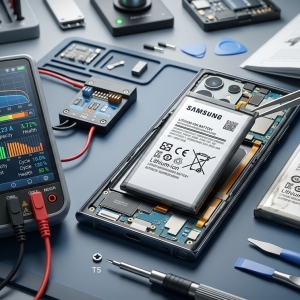
A professional technician can diagnose the device and recommend suitable troubleshooting or repair options. If you use a Samsung phone, Samsung repair Douglasville services may help investigate persistent device problems. If your phone also has battery-related symptoms, ask whether phone battery replacement Douglasville is appropriate after proper testing.
Mobile Device Techs can help you explore smartphone repair options when routine troubleshooting does not resolve the issue.
4. Frequently Asked Questions
Why does my app download stay pending?
A pending download may result from a poor internet connection, limited storage, or other downloads waiting in the queue. Check your connection and pause unnecessary downloads.
Why can't I download apps even though I have storage space?
The issue may involve your internet connection, app store cache, account settings, or device compatibility. Restart your phone and check for software updates.
Can an outdated phone prevent app downloads?
Yes. Some apps require newer operating systems or hardware specifications that older smartphones do not support.
Will resetting my phone fix app download problems?
A factory reset may resolve certain persistent software problems, but it erases data. Back up important files first and try simpler troubleshooting methods before considering this option.
Does a battery problem affect app downloads?
A weak battery does not usually prevent downloads directly. However, overheating, unexpected shutdowns, or other power issues can interrupt device operations.
5. Call to Action
Unable to download your favorite apps? Start by checking your internet connection, storage space, and software settings. If the problem persists, professional diagnosis can help identify the underlying cause.
Contact Mobile Device Techs to discuss smartphone troubleshooting and repair options, including Samsung repair Douglasville and phone battery replacement Douglasville when appropriate. Get your device checked and take the next step toward restoring its normal performance.