



A microSD card is a convenient way to expand your smartphone’s storage for photos, videos, documents, and other important files. However, sometimes a phone suddenly stops recognizing the card, displays an error message, or shows that no memory card is inserted. These problems can be frustrating, especially when you have important data saved on the card. Understanding the possible causes and troubleshooting steps can help you identify the issue. For professional assistance, Mobile Phone Repair Albany can be a starting point for exploring repair options. You can also learn about related services, including phone battery replacement Albany and laptop screen replacement Albany.
Table of Contents
- Common Reasons Your Phone Cannot Read a microSD Card
- How to Fix a Smartphone That Cannot Detect a microSD Card
- How to Protect Your Data
- When to Seek Professional Repair
- Frequently Asked Questions
- Conclusion and Call to Action
1. Common Reasons Your Phone Cannot Read a microSD Card
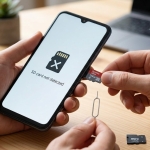
Several problems can prevent your smartphone from recognizing a memory card. Identifying the cause makes it easier to choose the right solution.
- Loose or improperly inserted card: The card may not be seated correctly in the tray.
- Dirty contacts: Dust or debris can interfere with the connection between the card and phone.
- Unsupported card capacity: Some smartphones support only specific microSD card capacities.
- File system errors: A corrupted file system may prevent the phone from accessing the card.
- Physical damage: A damaged memory card or card slot can stop the phone from reading it.
- Software issues: Outdated software or temporary system errors may affect card detection.
2. How to Fix a Smartphone That Cannot Detect a microSD Card
Try these troubleshooting steps before assuming that the memory card or phone needs repair.
Restart Your Smartphone
A temporary software glitch can sometimes prevent your phone from detecting external storage. Restart your device and check whether the card appears in the storage settings. This simple step may resolve minor recognition problems.
Remove and Reinsert the Card
Turn off your smartphone before removing the microSD card. Carefully eject the tray, remove the card, and check that it is positioned correctly. Reinsert it securely, then turn your phone back on.
Avoid forcing the tray into the device, as this could damage the card slot.
Inspect and Clean the Memory Card
Check the card for visible damage, dirt, or scratches. If the metal contacts appear dirty, gently wipe them with a clean, dry, lint-free cloth. Avoid using water or harsh cleaning products, and never insert a wet card into your phone.
Check Storage Settings
Open your phone's storage settings and look for the memory card. Depending on your device, it may appear under Storage, Device Care, or a similar menu.
If the card appears but cannot be accessed, read any displayed error message carefully. Do not immediately select an option to format the card if you need the files stored on it.
Test the Card in Another Compatible Device
If possible, insert the card into another compatible smartphone or use a reliable card reader connected to a computer. If another device recognizes it, the problem may be related to your phone's settings, software, or card slot.
If no compatible device can read the card, it may be corrupted or physically damaged.
Check for Software Updates
Install available system updates if your phone is running outdated software. Updates can sometimes resolve storage compatibility issues or software bugs.
Before updating, back up important data and ensure your device has sufficient battery power.
Avoid Formatting Before Backing Up
Formatting may resolve certain file system problems, but it can erase the data stored on the card. If the card is readable on a computer, copy important files to another storage location first.
If your files are important and the card is inaccessible, consider professional data recovery assistance before attempting formatting or repair utilities.
3. How to Protect Your Data
Taking a few precautions can reduce the risk of memory card problems in the future.
- Back up important photos, videos, and documents regularly.
- Use a compatible, reputable microSD card.
- Eject the card safely when using a computer or card reader.
- Avoid removing the card while files are being transferred.
- Keep the card and smartphone away from moisture, excessive heat, and physical impact.
- Replace cards that show repeated errors or signs of damage.
Regular backups are especially important because a memory card can fail without much warning.
4. When to Seek Professional Repair
If your smartphone still cannot read the card after basic troubleshooting, the problem may involve a damaged card slot, internal connection, or more serious software issue.
Professional inspection is worth considering if the card tray is bent, the phone has suffered water or impact damage, or multiple compatible memory cards fail to work in the same device.
Avoid opening the phone yourself unless you have the appropriate skills and tools. Improper handling can cause additional damage or affect other components.
5. Frequently Asked Questions
Why does my phone suddenly stop reading my microSD card?
Possible causes include a loose card, corrupted file system, damaged contacts, software errors, or card failure. Restarting the phone and checking the card in another compatible device can help identify the problem.
Will formatting my microSD card fix the issue?
Formatting may resolve some file system problems, but it usually erases the card's contents. Back up your files first. If the card contains important data that you cannot access, seek recovery advice before formatting.
Can a damaged microSD card be repaired?
Some file system problems can be resolved with appropriate tools, but physical damage may be irreversible. If the files are valuable, avoid repeated repair attempts that could make recovery more difficult.
Why does my phone recognize the card but not show my files?
The files may be hidden, the file system may be corrupted, or the card may have compatibility issues. Check the card on a computer without formatting it, and back up any accessible files.
How can I tell whether the card slot or memory card is faulty?
Test the memory card in another compatible device and, if possible, test a different compatible card in your phone. If other devices read your card but your phone cannot read multiple cards, the phone's card slot or software may be responsible.
6. Conclusion and Call to Action
When your smartphone cannot read a microSD card, the cause may be as simple as incorrect insertion or as serious as file system corruption or hardware damage. Restarting your phone, checking the card, reviewing storage settings, and testing another compatible device are useful first steps. Always protect important files before formatting or attempting repairs.
If troubleshooting does not solve the problem, Mobile Phone Repair Albany can help you explore phone repair options. You can also find information about phone battery replacement Albany and laptop screen replacement Albany. Take action early to protect your data and determine the right next step for your device.