



A laptop battery that suddenly stops charging can interrupt work, school, and everyday activities. The problem may come from a faulty charger, damaged charging port, outdated battery driver, overheating, or a worn-out battery. Understanding the cause can help you find the right solution without spending money on unnecessary replacements. Whether you need troubleshooting advice or professional Computer Repair Albany, virus removal Albany, or data recovery Albany services, identifying the underlying issue is the first step toward restoring your laptop's reliability.
Table of Contents
-
Common Reasons a Laptop Battery Stops Charging
-
Check the Charger and Power Outlet
-
Inspect the Charging Port
-
Check Battery Health and Settings
-
Update Battery Drivers and Windows
-
Prevent Overheating
-
When to Seek Professional Repair
-
Frequently Asked Questions
-
Get Professional Laptop Repair Assistance
1. Common Reasons a Laptop Battery Stops Charging
Several issues can prevent a laptop battery from charging properly.
-
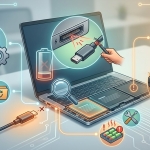
Faulty charger: A damaged cable or failing power adapter may not deliver enough electricity.
-
Damaged charging port: Loose connections or physical damage can interrupt power delivery.
-
Worn-out battery: Rechargeable batteries gradually lose their ability to hold a charge.
-
Software problems: Outdated drivers or operating system errors can affect battery reporting and charging behavior.
-
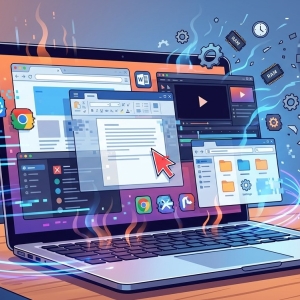
Overheating: Excessive heat can cause charging to pause to protect the battery.
-
Charging limits: Some laptops include battery conservation settings that intentionally stop charging around 60% or 80%.
Checking these possibilities systematically can help you determine whether the issue is simple or requires professional attention.
2. Check the Charger and Power Outlet
Start by checking the power adapter, charging cable, and electrical outlet.
Connect the charger to another working outlet and inspect the cable for visible damage. If possible, test a compatible charger that meets your laptop manufacturer's voltage and power requirements.
Avoid using damaged cables or adapters. If the charging indicator does not illuminate with a known-good charger, the problem may involve the charging port, battery, or internal power circuitry.
3. Inspect the Charging Port
A damaged or loose charging port can prevent electricity from reaching the battery.
Look for visible debris or signs of physical damage around the port. Do not insert metal objects or liquids into the connector. If the cable feels loose or charging starts and stops when the connector moves, stop repeatedly adjusting it and arrange a professional inspection.
Technicians offering Computer Repair Albany services can test the port and determine whether it needs cleaning, repair, or replacement.
4. Check Battery Health and Settings
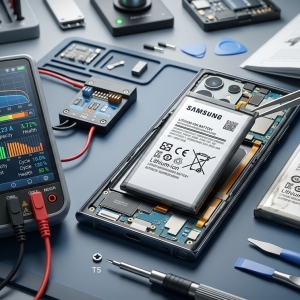
Some laptops provide built-in battery diagnostics or battery health reports. These tools can help identify reduced battery capacity or charging abnormalities.
Also, check your manufacturer's battery management application. Features such as battery conservation mode may deliberately limit charging to help extend battery lifespan.
If the laptop reports that the battery needs replacement, compare the diagnostic results with the device's age and actual battery performance before purchasing a new component.
5. Update Battery Drivers and Windows
Software issues can sometimes cause incorrect battery readings or charging-related errors.
On Windows, try these steps:
-
Right-click the Start button and open Device Manager.
-
Expand the Batteries category.
-
Review the listed battery devices for errors.
-
Check Windows Update for relevant system updates.
-
Restart your laptop and test charging again.
If the issue began after a recent update, investigate whether a compatible driver or manufacturer-recommended fix is available. Avoid downloading drivers from unfamiliar websites.
6. Prevent Overheating
Excessive heat can affect charging behavior and accelerate battery wear.
Place your laptop on a hard, flat surface that allows airflow. Keep the ventilation openings clear and avoid using the device on blankets or pillows that trap heat.
If the laptop becomes unusually hot, its fan runs constantly, or it shuts down unexpectedly, investigate the cooling system rather than assuming the battery is the only problem.
Important: If the battery is swollen, leaking, unusually hot, or producing an unusual odor, turn off the laptop if safe, disconnect power, and stop using it. Do not press, puncture, or attempt to remove a swollen battery yourself. Seek professional service promptly.
7. When to Seek Professional Repair
If your laptop still refuses to charge after checking the outlet, adapter, settings, and software, the issue may involve a failing battery, damaged charging circuitry, or a motherboard fault.
A qualified technician can test the power adapter, evaluate battery health, and inspect internal components before recommending a repair.
If charging problems occur alongside suspicious software behavior, professional virus removal Albany services may help investigate possible malware, although malware is not a common direct cause of battery charging failure.
If the laptop also contains important files and its storage drive begins failing, data recovery Albany professionals can help assess safe recovery options.
Frequently Asked Questions
Why does my laptop say plugged in but not charging?
Possible causes include battery conservation settings, a faulty adapter, overheating, battery deterioration, or charging circuit problems.
Can a laptop battery stop charging because it is old?
Yes. Rechargeable batteries gradually lose capacity over time and may eventually require replacement.
Should I leave my laptop plugged in all the time?
Modern laptops generally manage charging automatically. If your manufacturer offers a battery conservation feature, using it may help reduce long-term battery wear.
How do I know if my laptop charger is faulty?
Look for damaged cables, inconsistent charging indicators, or failure to charge with the adapter. Testing with a compatible, known-good charger can help narrow down the cause.
Get Your Laptop Charging Reliably Again
A laptop battery that stops charging does not always need immediate replacement. Checking the charger, inspecting the port, reviewing battery settings, and preventing overheating can help identify common problems. If the issue persists, trusted Computer Repair Albany, virus removal Albany, and data recovery Albany professionals can help diagnose related issues and protect your device and files.