
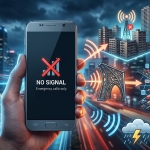




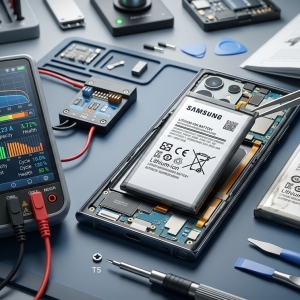

Losing your smartphone's network signal unexpectedly can be frustrating, especially when you need to make an important call, send a message, or access mobile data. Sometimes, the problem is caused by weak coverage or temporary network interruptions. In other cases, incorrect settings, a damaged SIM card, or an internal hardware issue may be responsible.
Understanding the cause can help you restore your connection and determine when professional assistance is necessary. Nanotech Mobile recognizes the importance of keeping your technology working reliably, whether you need smartphone troubleshooting or professional laptop repair Regina and MacBook repair Regina services.
Table of Contents
- Common Reasons Smartphones Lose Network Signal
- How to Fix Unexpected Signal Loss
- When to Seek Professional Repair
- Frequently Asked Questions
- Conclusion and Call to Action
1. Common Reasons Smartphones Lose Network Signal
Weak Network Coverage
One of the most common reasons for signal loss is poor cellular coverage. Remote areas, underground parking garages, elevators, and buildings with thick walls can weaken mobile signals.
Network congestion may also affect connectivity in crowded places or during major events.
Solution: Move to an open area or a location where your carrier normally provides stronger coverage. If the problem occurs in one specific place, check whether your mobile provider has reported a network outage.
SIM Card Problems
A damaged, incorrectly inserted, or worn SIM card can prevent your smartphone from connecting reliably to a mobile network. Dust or damage around the SIM tray may also contribute to connection problems.
Solution: Restart your phone and check whether the SIM card is correctly positioned. If appropriate for your device, carefully remove and reinsert it according to the manufacturer's instructions. Contact your carrier to test or replace the SIM if the issue continues.
Incorrect Network Settings
Your phone may lose its signal if it is configured to use an unsuitable network mode or an unsupported carrier setting. Accidental changes to cellular settings can also interfere with connectivity.
Solution: Check that Airplane Mode is turned off and that cellular service is enabled. Review your preferred network mode and use the automatic network selection option if your device and carrier support it.
Software Bugs and Outdated System Software
Temporary software glitches can affect how a smartphone connects to cellular networks. An outdated operating system or a recent update that introduced a compatibility issue may also contribute to signal problems.
Solution: Restart your phone and install official software updates when available. If the issue began immediately after an update, check for additional updates or manufacturer guidance before attempting more advanced troubleshooting.
Damaged Antenna or Internal Hardware
Smartphones contain internal antennas and communication components that help maintain cellular connections. A hard drop, liquid exposure, or internal component failure may damage these parts.
Hardware-related signal problems may appear alongside other symptoms, such as frequent disconnections, SIM detection errors, or difficulty connecting in places where other phones have strong reception.
Solution: If signal loss continues after basic troubleshooting, arrange a professional inspection. Avoid opening the device yourself, as delicate components can be damaged easily.
Carrier Outages or Account Issues
Sometimes, the problem is not your phone. Mobile providers may experience temporary outages, maintenance interruptions, or account-related service restrictions.
Solution: Check your provider's service-status information, confirm that your account is active, and contact customer support if the issue persists.
2. How to Fix Unexpected Signal Loss
Try these steps before arranging a repair:
- Toggle Airplane Mode: Turn it on briefly, then switch it off to refresh the cellular connection.
- Restart your smartphone: This can resolve temporary software or network-registration problems.
- Check your location: Move away from areas with poor reception and test the signal again.
- Inspect your SIM card: Follow the manufacturer's guidance to check that it is correctly inserted and undamaged.
- Install software updates: Use official updates from your device manufacturer.
- Reset network settings if necessary: This may resolve persistent configuration problems, but it can erase saved Wi-Fi networks, Bluetooth pairings, and other network preferences.
If these steps do not work, contact your mobile carrier to rule out service problems before seeking hardware repair.
3. When to Seek Professional Repair
Professional diagnostics may be necessary if your smartphone repeatedly loses its signal in areas with good coverage, fails to recognize a working SIM card, or develops connectivity problems after physical damage.
A qualified technician can inspect the device and determine whether the problem involves the antenna, SIM reader, software, or another internal component.
Nanotech Mobile understands that reliable technology matters beyond smartphones. If you also experience technical problems with your computer, exploring professional laptop repair Regina and MacBook repair Regina services can help you identify issues before they become more serious.
Frequently Asked Questions (FAQs)
1. Why does my phone suddenly show “No Service”?
Possible causes include weak coverage, a carrier outage, SIM card problems, incorrect network settings, or damaged internal components.
2. Can a software update cause signal problems?
Yes. Software bugs or compatibility issues can sometimes affect cellular connectivity. Restart your phone, check for further official updates, and contact your carrier if the issue continues.
3. Does a damaged SIM card cause frequent signal loss?
Yes. A damaged or improperly seated SIM card can interrupt network registration. Your carrier can test the SIM and provide a replacement if needed.
4. Why does my phone lose signal after being dropped?
A drop can damage internal antennas or other communication components. If restarting the phone and checking the SIM do not help, professional inspection may be necessary.
5. Should I reset my phone to fix network problems?
A factory reset is usually not the first step. Try basic troubleshooting, check with your carrier, and consider resetting network settings before performing a factory reset. Back up your data before any factory reset.
Conclusion
Unexpected smartphone signal loss can result from weak coverage, SIM card problems, incorrect settings, software glitches, carrier outages, or damaged internal hardware. Checking your location, restarting your phone, reviewing network settings, and contacting your carrier can often help identify the cause.
Nanotech Mobile understands the value of dependable technology, whether you need smartphone troubleshooting, laptop repair Regina, or MacBook repair Regina services. Identifying technical problems early can help you choose the right solution and keep your devices working reliably.
Call to Action
Is your smartphone repeatedly losing its network signal? Visit Nanotech Mobile to explore available repair services and find out what to do next. If basic troubleshooting does not restore your connection, consider getting your device professionally inspected.